











Drag & drop
3D Model
Analytics
Quick Stats
AI Generation
Traffic
Leaderboard
Distribution
Sources & Activity
Visitor Insights
Engagement & Duration
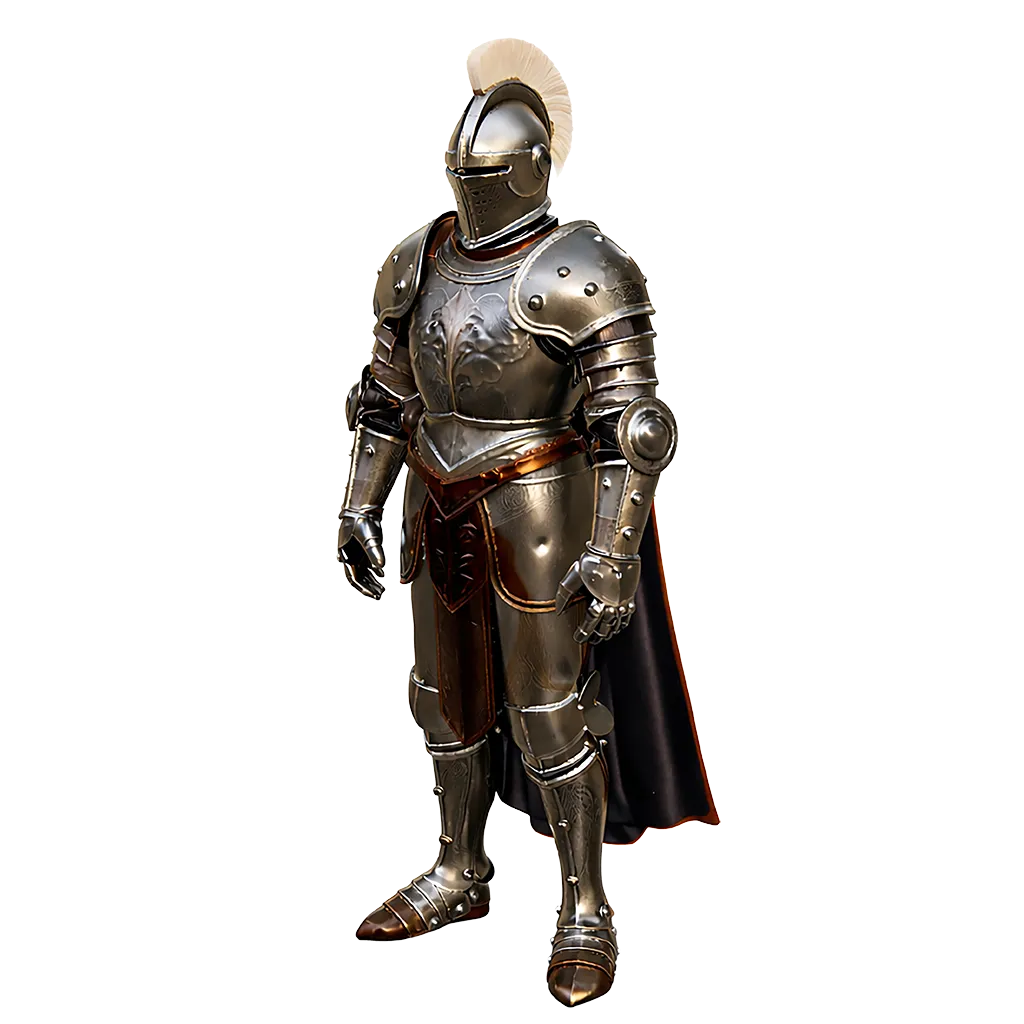
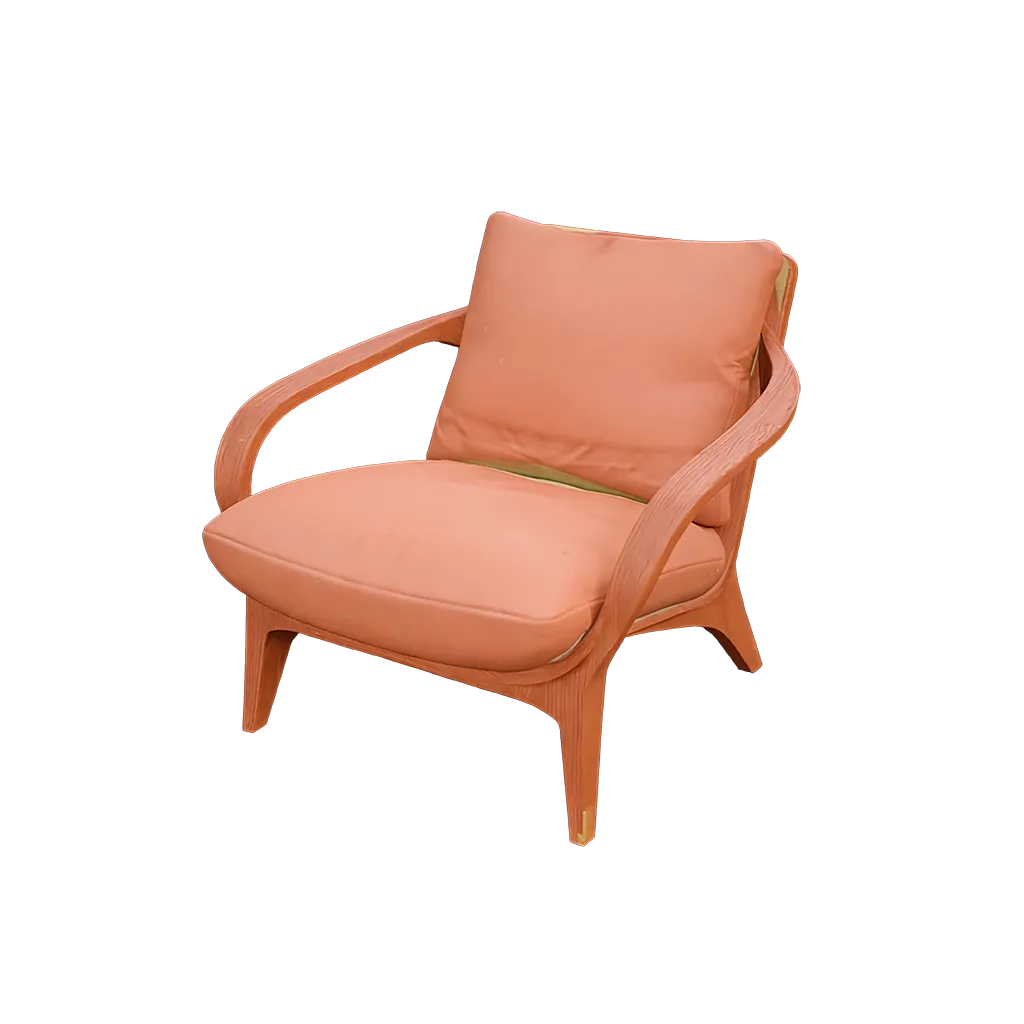
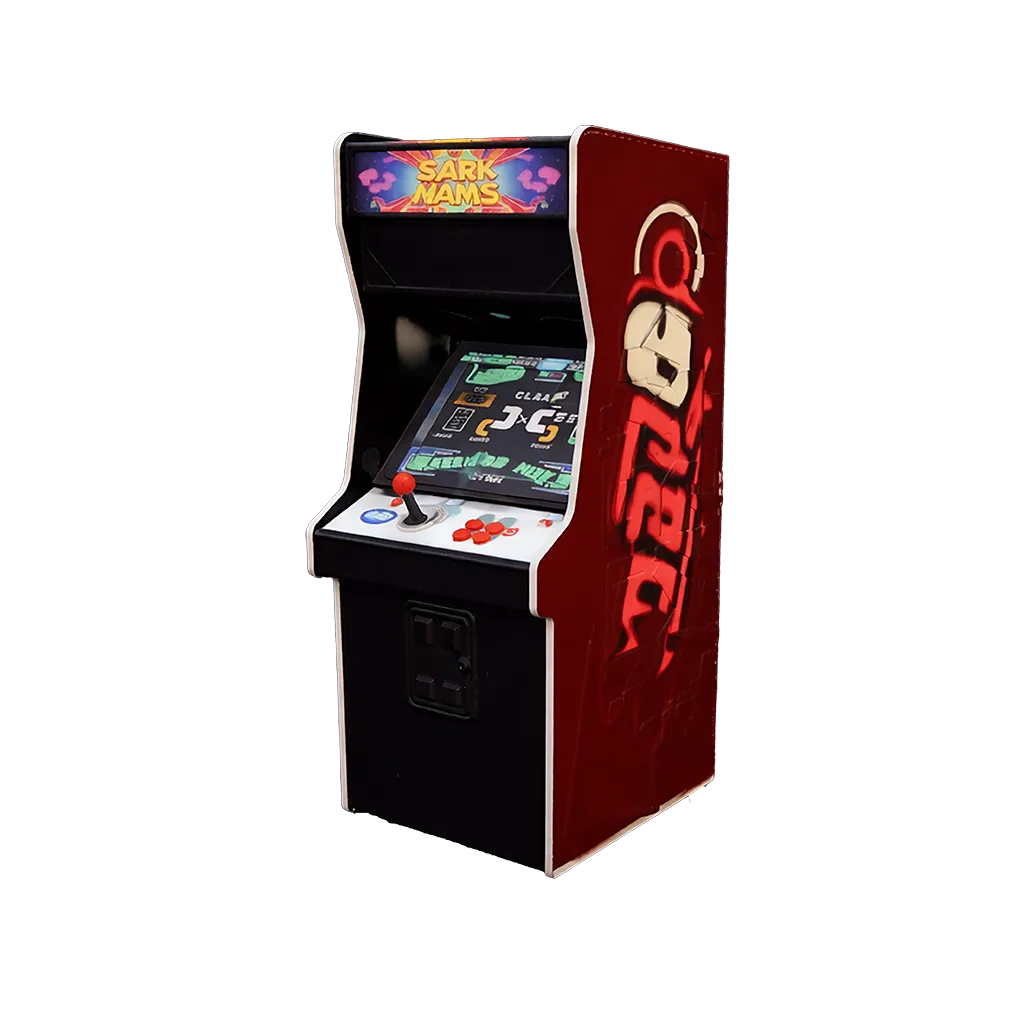
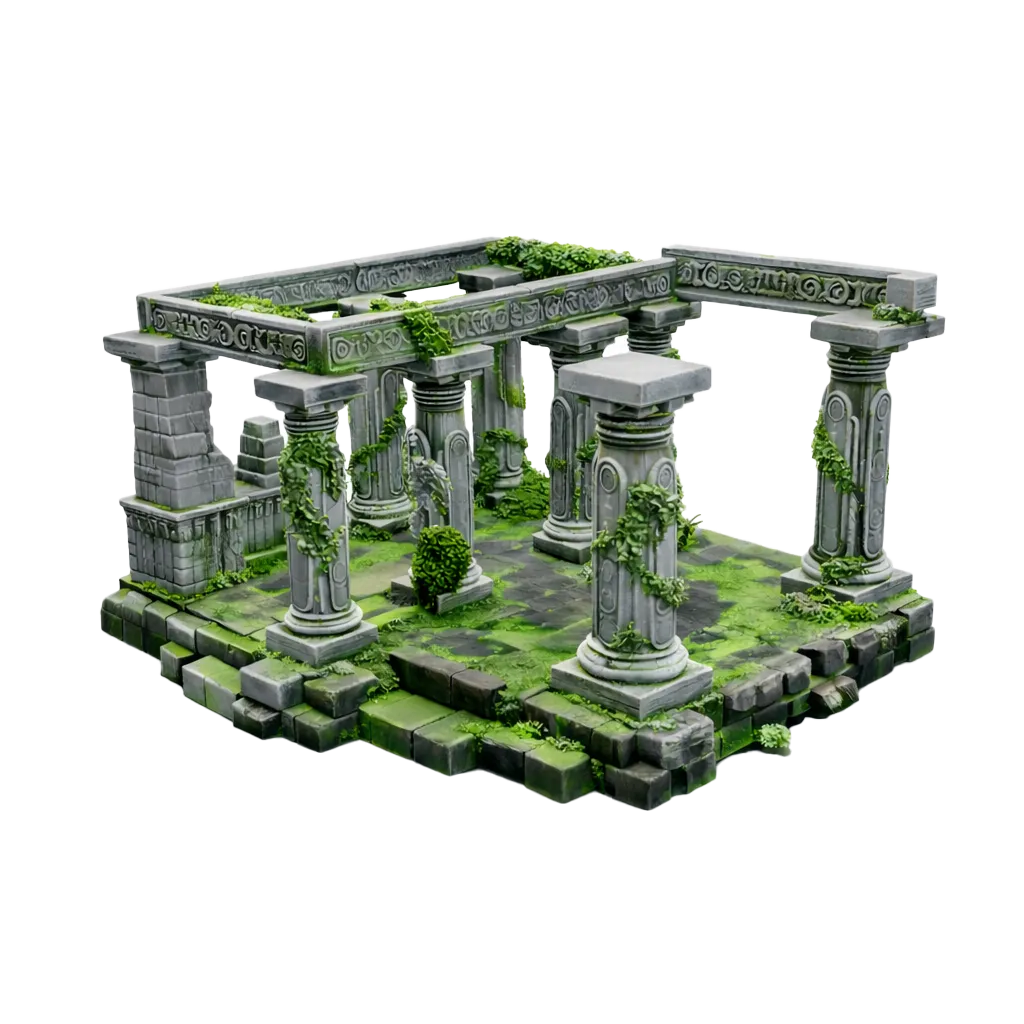



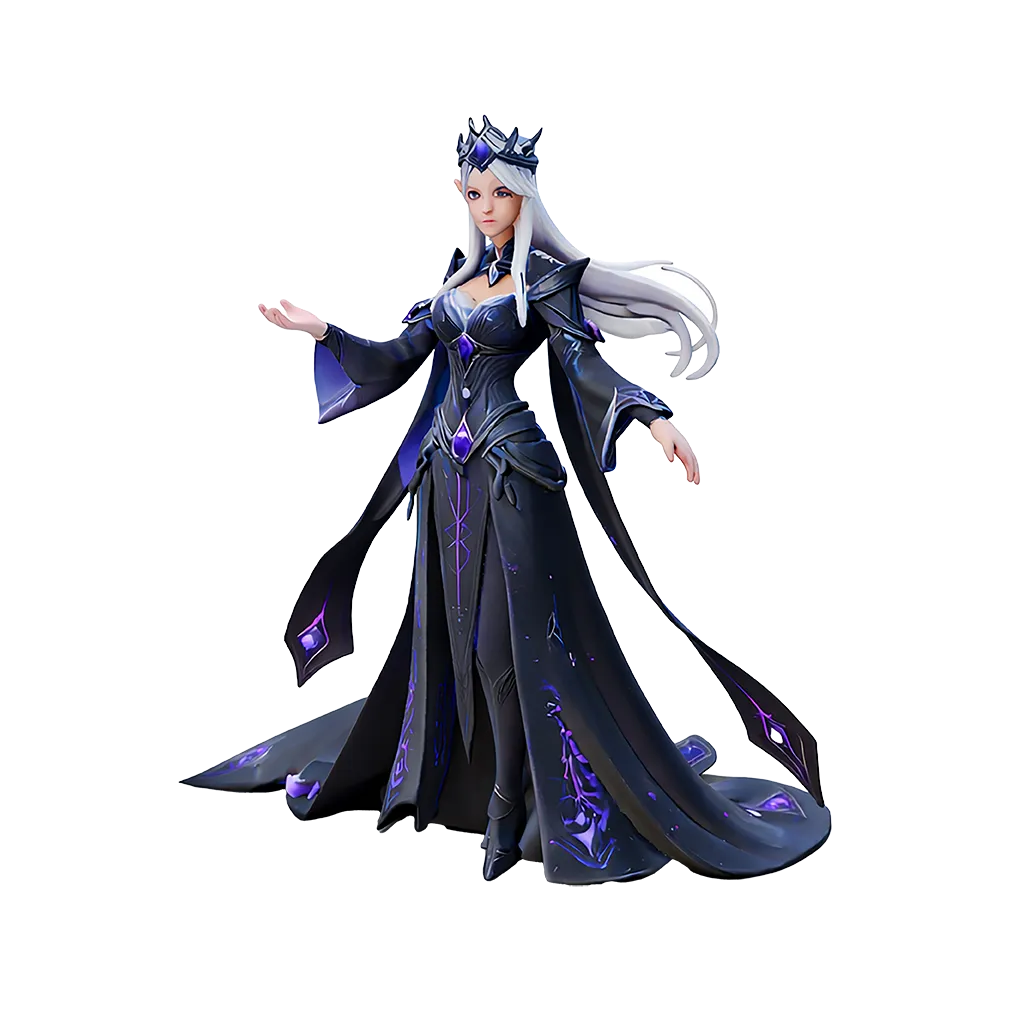
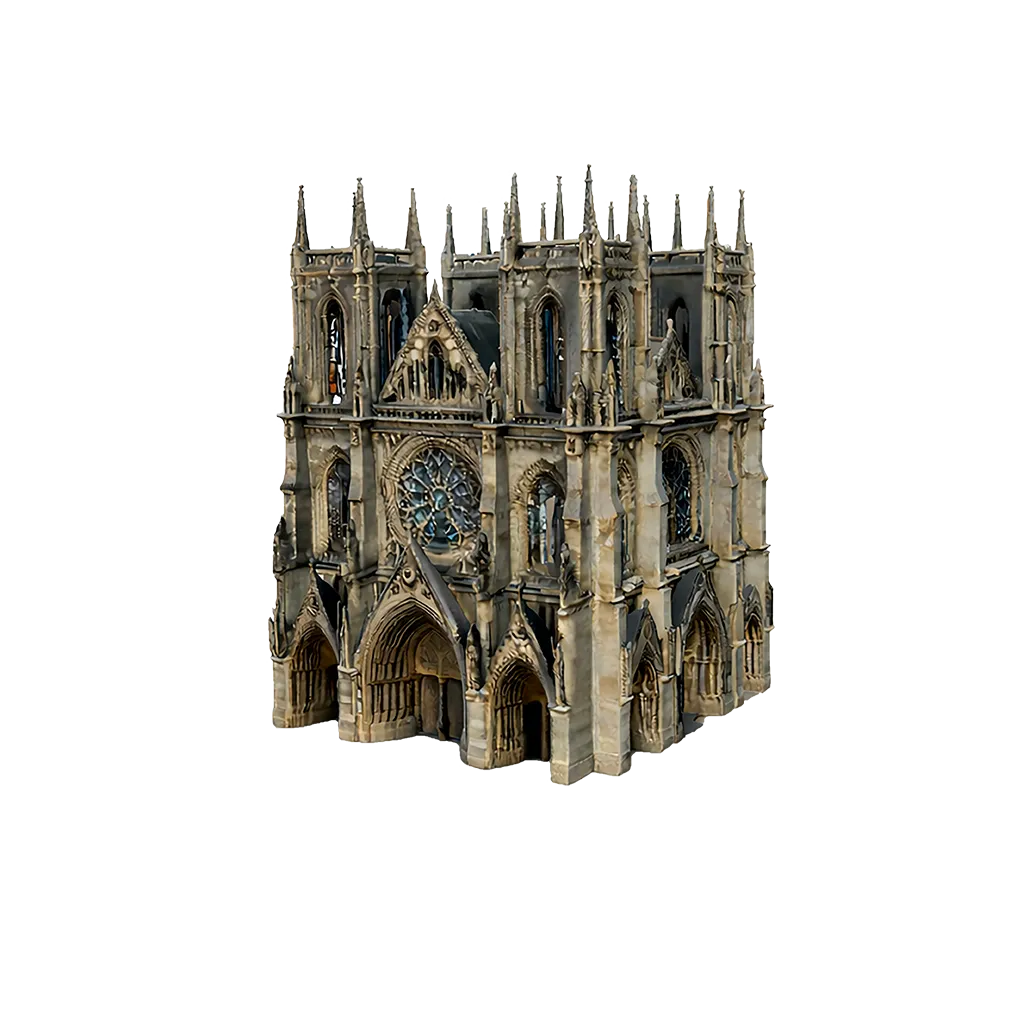

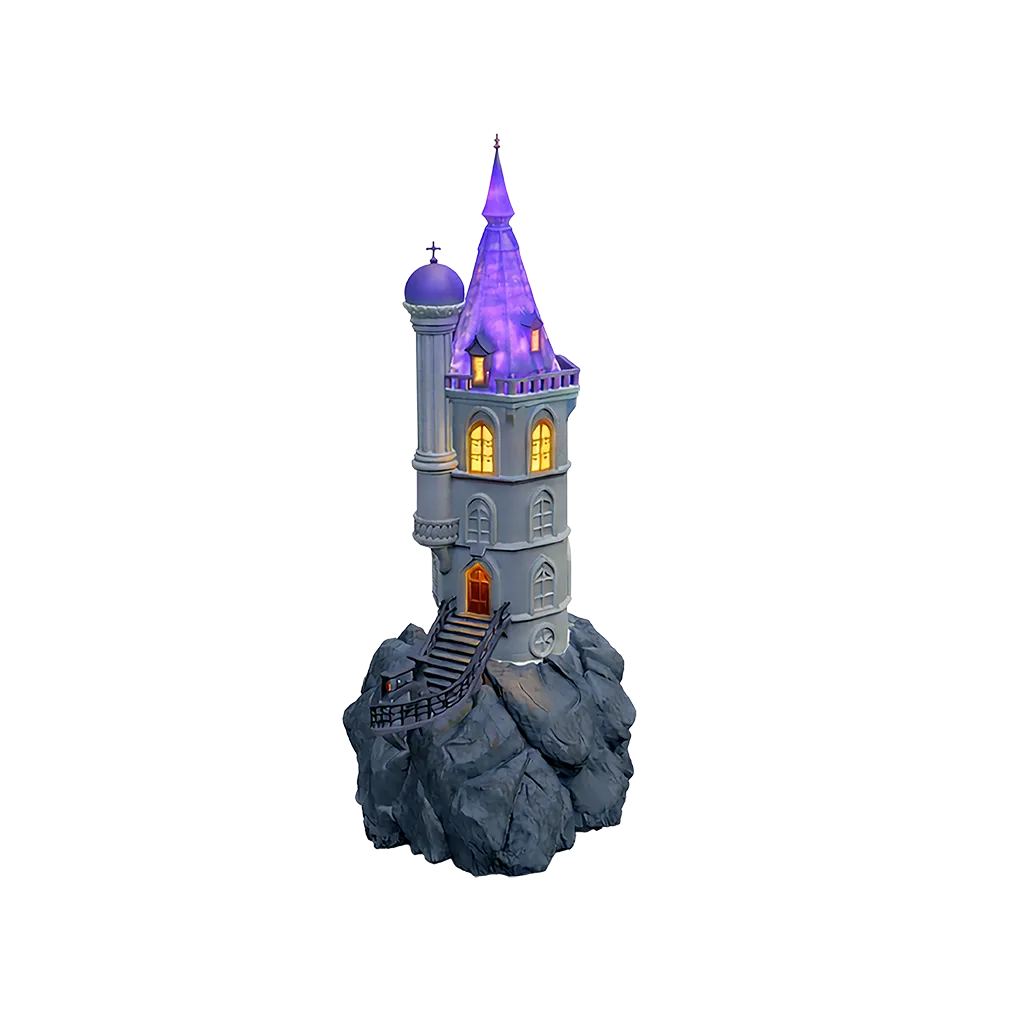
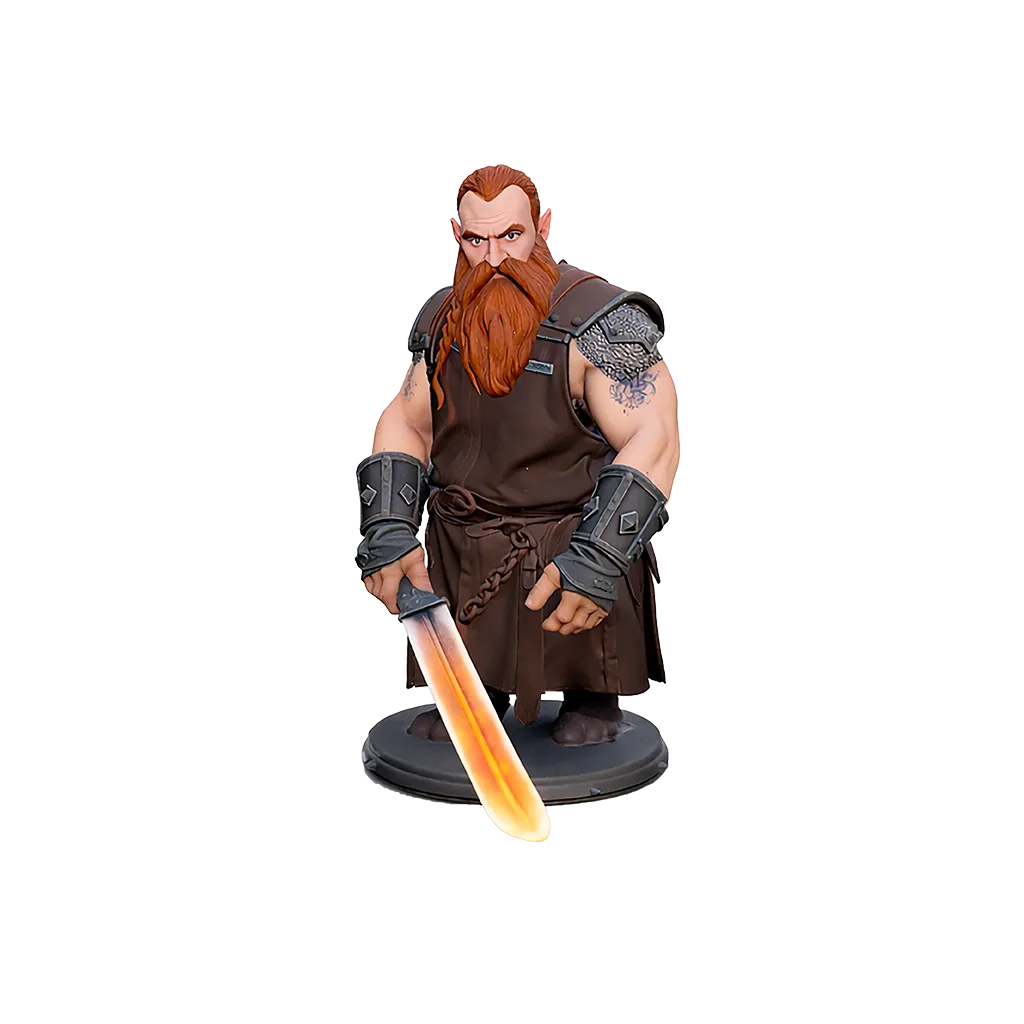

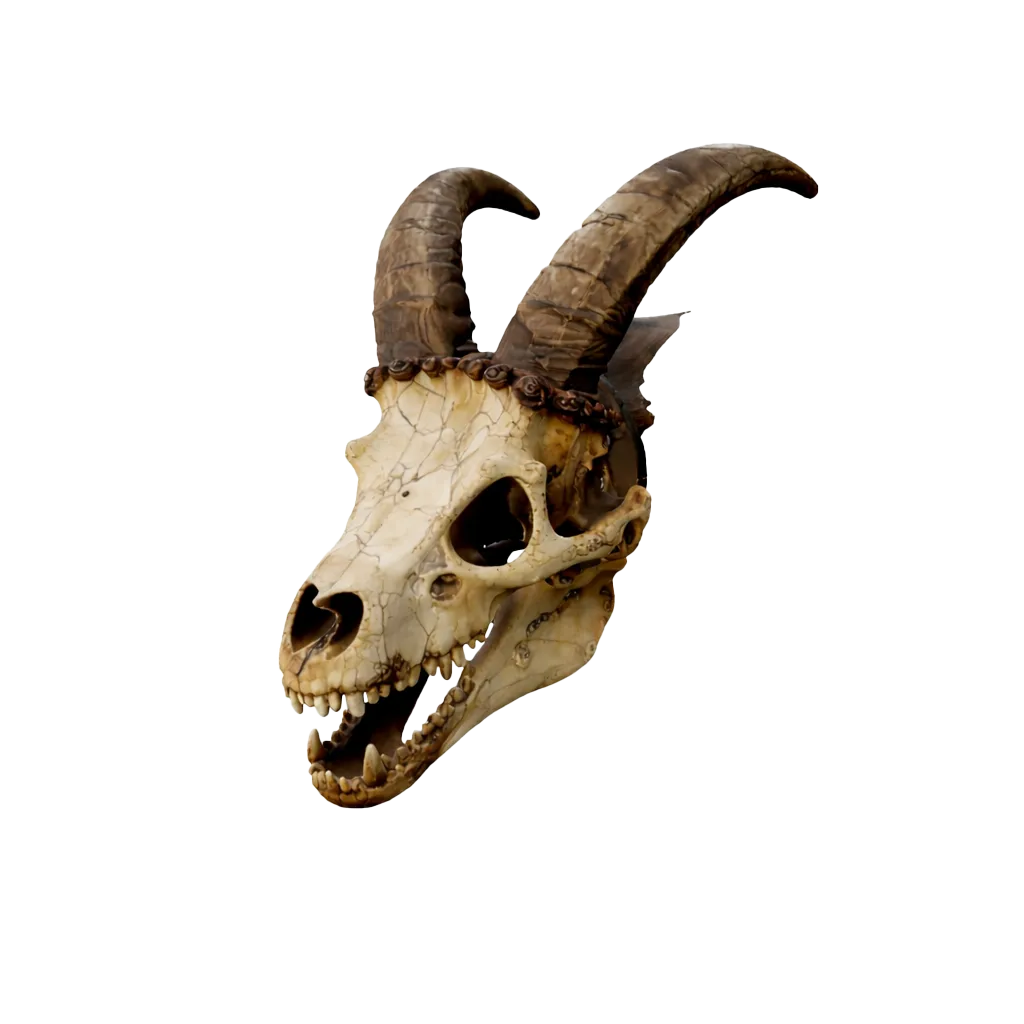
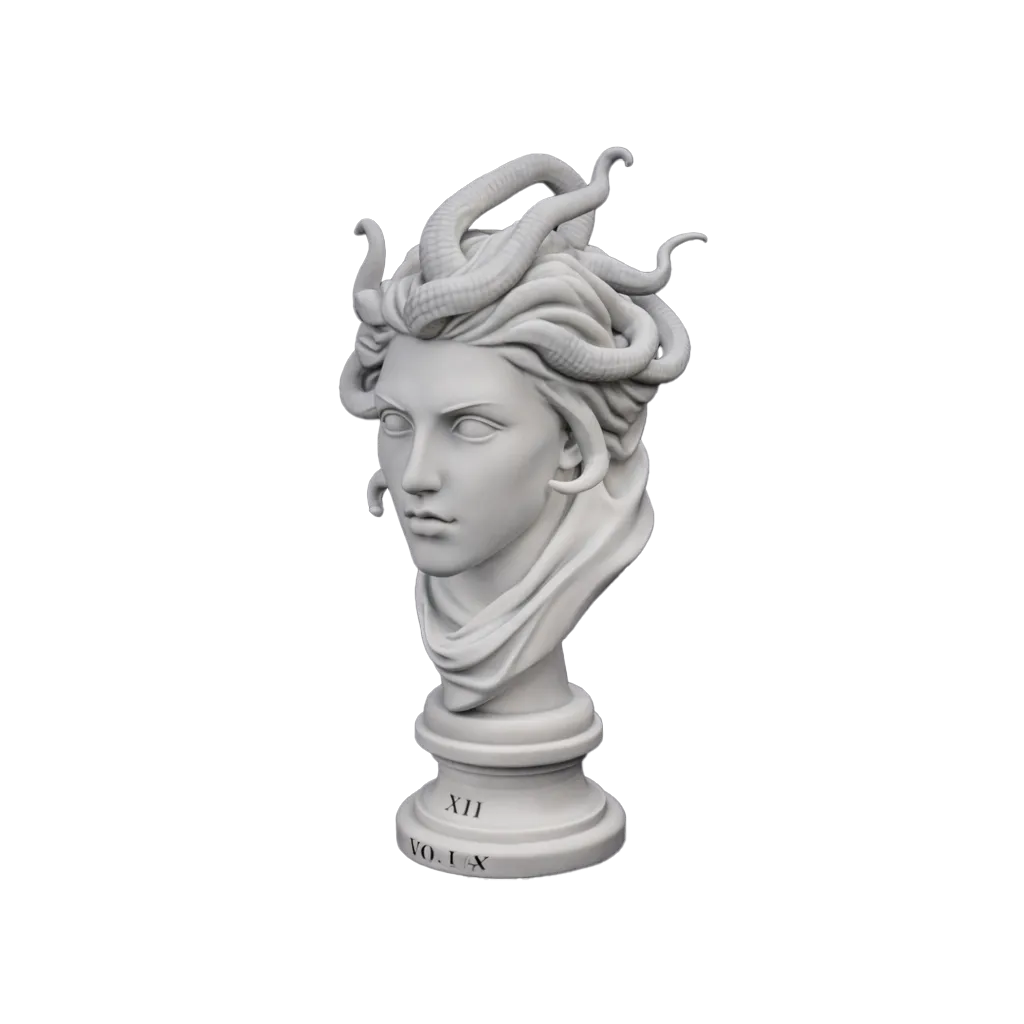
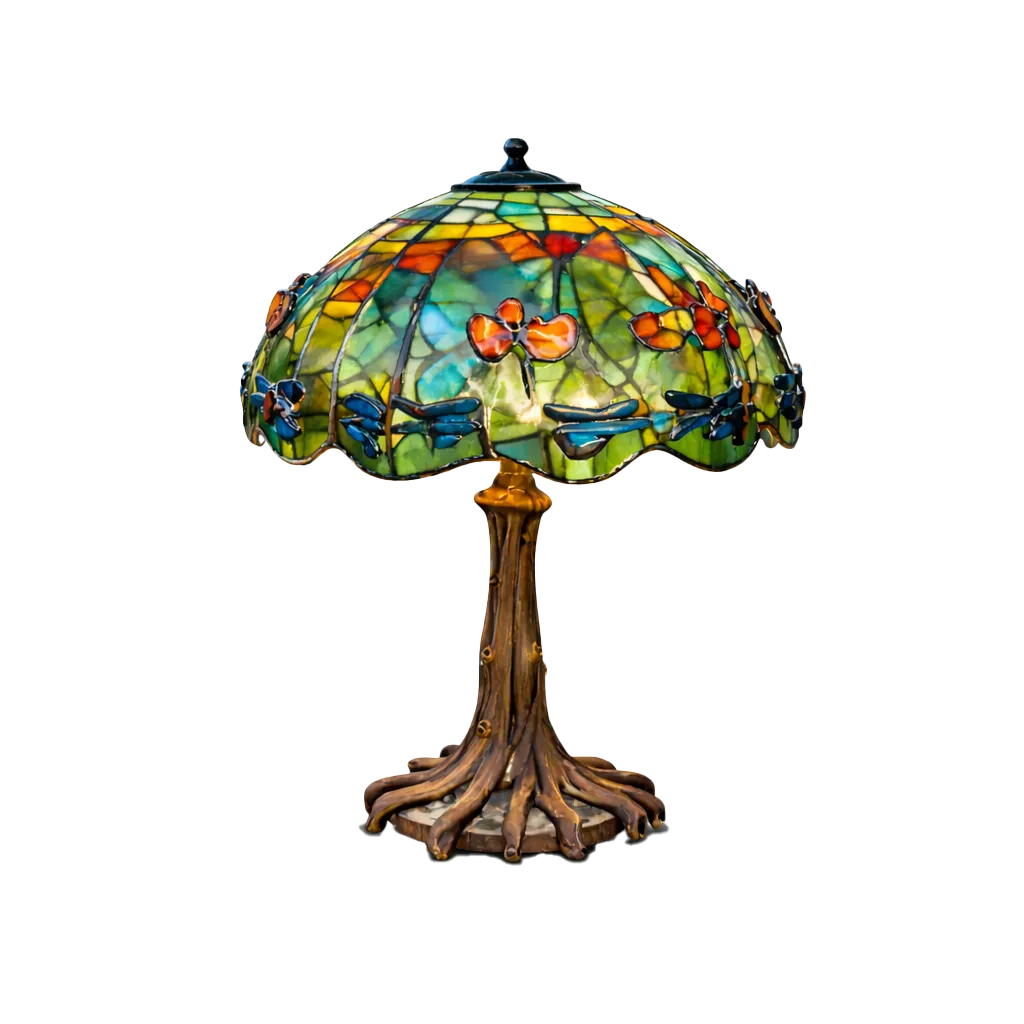


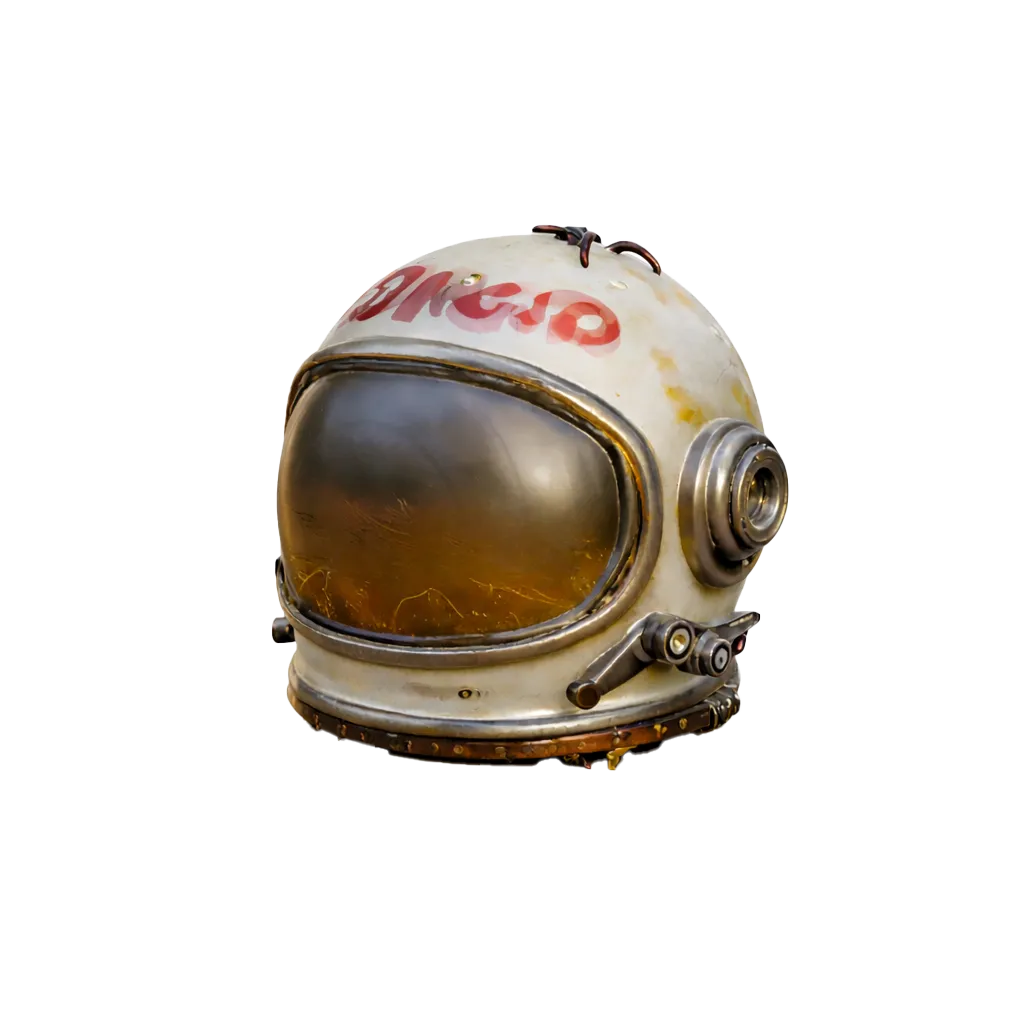
Library
All your pages, models and live links, together in one place.
Resources
Getting Started
Explore the architecture, workflow, and core capabilities of the BASE 3D-AR Platform
WebGPU-First Rendering Engine
The 3D engine prioritizes WebGPU for faster rendering and advanced shader support, with automatic fallback to WebGL 2.0 on unsupported browsers. Tone mapping uses ACESFilmic for cinema-grade color accuracy.
High Frame Rate Rendering
The engine renders in sync with your display's refresh rate (VSync) with no artificial frame cap. On 60 / 90 / 120 Hz screens it runs at the matching frame rate, supporting smooth playback up to 120 fps on capable hardware.
Adaptive Quality
If sustained frame drops are detected, the engine makes a one-time conservative adjustment (render scale and shadow resolution) to keep motion smooth. Full quality can be restored anytime.
Smart Caching & CDN
Models are cached locally via basebros-3d-cache-v1. Repeat visits load instantly with zero bandwidth cost. Assets are served from a global CDN for minimal latency worldwide.
Supported Formats
.GLB (Binary glTF) is the recommended format for optimal performance. Max file size: 50 MB. Drag & drop multiple files for batch upload.
Platform Workflow
Three steps from 3D file to live AR experience:
PBR Material System
Full MeshPhysicalMaterial pipeline with support for Base Color, Roughness, Metalness, Normal, Emissive, and AO maps. Edit every surface channel in real-time with texture upload.
Control Editor
Fine-tune viewer behavior with animation playback, auto-rotate speed, zoom toggle with zoom in/out limits, shadow controls, model positioning offsets, and camera orbit limits.
VSM Shadow Engine
Variance Shadow Mapping at 2048×2048 resolution with adjustable softness. Shadow blur samples auto-calculate based on radius for optimal quality/performance balance.
Responsive by Design
Independent settings for desktop and mobile. Logo position, AR button style, and layout are configured per device with live dual-mockup preview.
AI Assistant
Built-in AI-powered assistant trained on platform documentation. Get instant answers, workflow guidance, and troubleshooting help, available 24/7 in the sidebar. Pop it out into a floating window to keep it open while you work. It reads your live account context (plan, slots used, page count), so answers are specific to you. If a reply ever fails, your typed message is kept and you get a retry instead of an empty bubble.
Send Images to the Assistant
Click the + button next to the assistant's message box to attach up to 4 images per message, each under 5MB. Any image type your browser reports is accepted, plus HEIC/HEIF from iPhone (recognised by file extension and converted automatically). The + button hides once you reach 4. Thumbnails appear above the input, each with an X to remove it.
The assistant actually looks at what you send, so the fastest way to report a visual problem is to screenshot the screen you are stuck on and ask about it. Attached images are used for that reply only and are not kept in your chat history. The same + button works in Support messages and Bug Reports.
Save Changes
Your scene, material and control edits stay as a local preview until you click Save. A status card shows "Unsaved changes" with Save and Discard buttons, and tells you what is pending: Model, Page or Model + Page. The Model Editor and Page Designer share this one card, and a single Save commits the model first, then the page design, straight to your live public page. There is no separate publishing step to remember. Discard asks for confirmation and returns everything to the last saved state.
Model Editor
Asset pipeline, model cards, and model organization tools.
Upload & Storage
Drag & drop one or multiple .GLB files to upload, up to 5 files per batch. Max file size is 50 MB per model. Every upload is optimized automatically: geometry is DRACO-compressed right in your browser during upload, and textures are resized to a maximum of 2048 px and served as WebP. The system tracks file size, upload date, and generates metadata automatically. Upload slots depend on your plan; when the quota is reached the upload card shows a notice with an upgrade option.
Instant First Publish
A freshly uploaded model goes live on its own, no Save needed for the first publish. Every model is automatically paired with its own 3D-AR page (1 model = 1 page), so the moment the upload finishes, both the model and its page are already live. Any edits you make afterwards follow the normal Save flow with the "Unsaved changes" card.
Preview Before Upload
Drop or pick a single .GLB and it renders instantly in a local preview, no upload yet. A "Preview" bar shows the file name and size so you can fine-tune Scene and Material first, then Confirm & Upload to save it (with your edits and any textures you added during the preview) or Discard to cancel. The preview even survives a page refresh, so nothing is lost by accident. Selecting multiple files at once skips preview and uploads as a batch.
4K Screenshot
The camera button in the slider toolbar captures a 4K (3840 x 2160) PNG render of the current model in its current scene and background. When it finishes, download it as ModelName_4K.png.
Model Slider
All your models appear as thumbnail cards below the viewer. Click a card to load that model; the active card is highlighted, and if you have unsaved changes a dialog asks you to save or discard first. Each card shows a source icon in front of its name (a wand for AI Generated, a cloud for Uploaded; BASE models carry no icon), a NEW badge on models you have not opened yet, and two corner buttons: info (opens More Details) and a three-dot Actions menu. Thumbnails update live as you edit color or scene, and cards briefly lock while a save is running.
Auto-Thumbnail Engine
Thumbnails are generated automatically when a model loads in the viewer. The system captures the current scene with all lighting and material settings applied. Thumbnails update whenever you modify the scene.
Search, Sort & Filter
Find models instantly with live search. The Sort & Filter popup orders cards by Recently, Oldest, Largest, Smallest, Name A-Z or Name Z-A, plus a Reorder mode to drag cards into a custom order. A source switch filters cards by All, AI Gen, Uploaded, or BASE. Each card shows its thumbnail, name, size and source badge.
Change Model
Swap the 3D file behind a model without losing anything else. The Change Model chip in the More Details popup replaces the model with a new .GLB (max 50 MB) while its page, public link, QR code and analytics are all preserved. Scene and material overrides reset so the new file starts clean. Available on models you uploaded yourself, not on BASE defaults or AI generations.
Card Actions Menu (three-dot)
Every model card has a three-dot button that opens the full Actions menu. Press Esc or click outside to close it. Every item:
More Details Popup
The info button on a card (or More Details in the Actions menu) opens a full model overview:
Editor on Mobile
On phones the Model Editor keeps the canvas at the top of the screen, with the three editor tabs (Scene, Controls, Material) in a fixed half-screen bottom sheet below it. Your model cards live in a separate full-screen drawer: open it with the cubes button in the top bar, browse the three-column grid, and close it with the X, the arrow strip at the bottom, or simply by picking a model. A single Reset button at the top right of the canvas resets whichever tab is currently active, with the same confirmation popups as on desktop. Published 3D-AR pages and embeds are always fully mobile-ready, independent of the studio.
Scene Editor
Master the lighting, environment, and camera behaviors to create the perfect 3D shot.
Every Slider: Reset + Type an Exact Value
Each slider in the Scene and Controls tabs (and in the Page Designer right panel) has two controls on its right:
- Reset button - returns that one slider to its default value with a short animation, without touching anything else. Grab the slider mid-animation and your input wins instantly.
- Editable number box - click the number and type an exact value. Enter applies, Escape cancels, and the arrow keys nudge it one step at a time.
Typed values are automatically clamped to the slider's range and snapped to its step, so an out-of-range number is impossible. Model Orientation and Model Scale keep their own dedicated reset buttons, and Material rows use their own per-property resets, which return the value to the model's original GLB state rather than a platform default.
Reset Settings (per tab)
Each of the three editor tabs has its own Reset Settings button at the very top. It resets only that tab, after a confirmation popup:
- Scene: restores environment (HDRI), lighting, exposure, shadows and background to platform defaults.
- Controls: restores auto-rotate, zoom, pan, animation, offsets, orientation, scale and orbit locks, and clears the saved Start View.
- Material: returns every material to the model's original GLB values.
There is no cross-tab reset. On mobile, a single Reset button above the canvas resets whichever tab is active.
Canvas Background
Customize the viewer backdrop:
- No Background swatch: The checkerboard swatch, always first in the strip, removes the background entirely (PNG style). Essential for seamless website integration.
- Preset gradients: 63 curated gradient backdrops across seven color families (Studio White, Carbon Steel, Rich Red, Luxury Gold, Deep Emerald, Royal Blue, Vivid Purple and more), one click each.
- Custom color: Pick any solid hex color with the Custom color picker (e.g., Brand Black).
Changes apply instantly and are mirrored live in your Page Designer mockup.
Scene Presets
One-click looks for the whole scene. Presets belong to your account, not to a model: save a look while editing one model and apply it to any other. Five built-ins are always available and cannot be deleted:
- Default: Balanced key light on the Aircraft Workshop HDRI with light ambient fill. Clean, neutral product look.
- Studio: Soft studio lighting on the Studio Photo Classic HDRI with auto-rotate off. Natural product presentation.
- Cinematic: Strong warm key light on the Sunny Beach HDRI with low environment intensity for dramatic, high-contrast shots.
- Showroom and Spotlight complete the built-in set.
Click Add to save your current setup as a custom preset (names up to 30 characters, up to 20 custom presets per account). Applying a preset animates smoothly to the new values, the active chip shows a check, and a modified badge appears if you tweak settings afterwards. Custom presets are deleted from the X on their chip, with confirmation.
Environment (HDRI) & Camera
Controls the global illumination, reflections, and camera sensitivity.
Directional Light (Sun) Settings
Intensity & Ambient
Light Intensity (0 – 20): Brightness of the main directional light.
Ambient Strength (0 – 1.5): Fill light that brightens shadow areas. Increase if shadows appear too dark.
Sun Position
Azimuth (−180° to +180°): Rotates the sun horizontally around the model.
Elevation (−45° to +90°): Height of the sun. Lower values create longer, more dramatic shadows.
Shadow Softness
Controls the Shadow Radius (0 – 50).
0 = Sharp, hard-edged shadows.
50 = Very soft, diffused shadows.
Uses VSM soft shadows at 2048×2048 resolution (automatically 1024 on low-end devices) for consistent quality on the published page.
Light Ambient Strength
A fill-light slider (0 to 1.5) that lifts the brightness of shadow areas without moving the main light. Raise it if shadows look too dark, lower it for more contrast.
Interaction & Behavior (these live in the Controls tab, not Scene)
Camera Controls
- Set Start View: Saves the current camera position and angle as the default landing view. When visitors open the page, the model will appear from this exact perspective.
- Enable Zoom: Allows end-users to zoom in/out via scroll wheel or pinch gesture on mobile.
- Zoom In/Out Limits: Set how close and how far users can zoom. Saved per model, applied on public page too.
Auto Rotate
Automatically spins the model when idle.
- Toggle: Enable/Disable rotation.
- Speed Slider: Controls how fast the turntable spins.
Animation & Shadows
Play Animation: Automatically plays embedded GLB animations. If the model contains multiple animation clips, select the active one from the dropdown.
Model Shadows: Master toggle to enable/disable cast shadows. Disabling can improve performance on low-end devices or when shadows are not needed.
Viewport Display Modes
Wireframe / Solid / Render Modes
Switch between three viewport display modes using the toggle buttons at the top-left corner of the 3D viewer. Inspired by professional 3D tools like Blender and 3ds Max.
Render Mode
The default display mode. Shows the full PBR (Physically Based Rendering) output with textures, lighting, reflections, HDRI environment, and shadows. This is how your model will appear on the published page.
Solid Mode
Displays the model with a flat grey material, no textures, no reflections. Useful for evaluating the model's shape, proportions, and overall form without visual distractions from materials.
Wireframe Mode
Shows only the mesh edges of the model, revealing polygon topology and edge flow. Adapts to your theme, lighter in dark mode, darker in light mode for optimal visibility.
Good to Know
- Switching models automatically resets to Render mode.
- Material editing is only available in Render mode.
- All material changes are preserved when switching between modes.
- Screenshots and exports work in all three modes.
Control Editor
Fine-tune viewer behavior, animation playback, camera constraints, and model positioning for the perfect interactive experience.
Animation Playback
Control embedded 3D animations from GLB/GLTF files (the Animation section sits at the bottom of the Controls tab):
- Play/Pause Toggle: Enable or disable animation playback with a single click.
- Clip Selector: Choose from multiple animation clips embedded in the model (walk, idle, run, etc.). The chosen clip starts playing immediately.
- Auto-Play: Animations can be set to play automatically when the viewer loads.
- No animations? The dropdown is disabled and reads "No animations found".
The play toggle can be stored in Scene Presets; the selected clip always stays with the model.
Auto-Rotate
Create a smooth turntable effect for product showcases:
- Enable/Disable: Toggle automatic rotation on or off.
- Speed Control: Adjust rotation speed from 0.1 (slow) to 30 (fast).
- Smooth Start/Stop: Rotation eases in and out, and pauses automatically while you drag the model.
Zoom Control & Limits
Manage user zoom interactions and define zoom boundaries per model:
- Enable/Disable Zoom: Toggle scroll wheel and pinch zoom on/off.
- Zoom In Limit: Controls how close users can zoom (0.1 to 1.0, default 0.5). Range: Very Close → Default → Restricted.
- Zoom Out Limit: Controls how far users can zoom out (1.0 to 5.0, default 2.0). Range: Restricted → Default → Farthest.
- Smart Scaling: Limits are multipliers of the camera's framing distance, not absolute values, so they keep working correctly when you switch models.
- Per-Model: Each model saves its own zoom limits independently.
- Public View: Zoom limits are applied on the published page as well.
Pan Control
Allow visitors to shift the model within the canvas:
- Enable Pan: Visitors move the model by right-clicking and dragging on desktop, or dragging with two fingers on touch devices.
- Disable Pan: Lock model position for controlled viewing experience.
- Use Case: Enable for detailed inspection, disable for fixed product showcases.
Shadow Toggle (lives in the Scene tab)
Master control for real-time shadows:
- Enable Shadows: Realistic VSM soft shadows for grounded appearance.
- Disable Shadows: Improves performance on mobile devices.
- Performance Tip: Disable shadows for complex scenes or low-end devices.
Reset Settings (Controls tab)
The Reset Settings button at the top of the Controls tab resets only this tab, after a confirmation:
- Restores auto-rotate, zoom, pan and animation to their defaults.
- Zeroes the model offsets, orientation and scale, and releases both orbit locks.
- Clears the saved Start View.
The Scene and Material tabs have their own Reset Settings buttons with their own scope; nothing crosses tabs.
Model Offset (Position)
Precisely position your 3D model within the viewer canvas without modifying the original file.
Model Orientation (Tilt / Spin / Lean)
Re-orient the model on three axes without editing the original file, ideal for fixing a GLB that was exported facing the wrong way. Each axis has a slider, a numeric degree input, and a reset, plus a Reset All Axes button. Orientation is saved per model and never part of Scene Presets.
Camera Orbit Limits
Lock Back View
Restrict camera rotation to prevent viewing the model from behind:
- Purpose: Hide unfinished back faces, interior geometry, or incomplete textures.
- Behavior: Users can rotate ~180° horizontally but cannot see the rear.
- Use Case: Architectural facades, product fronts, character portraits.
Lock Bottom View
Prevent users from rotating the camera below the model:
- Purpose: Hide bottom geometry, floor planes, or unwanted interior views.
- Behavior: Camera elevation is clamped above the horizon line.
- Use Case: Furniture, vehicles, products meant to sit on surfaces.
Orbit Locks & Auto-Rotate
While Lock Back View or Lock Bottom View is enabled, Auto-Rotate is paused automatically, otherwise the turntable would spin straight into the blocked angle. Turn the lock off and rotation resumes.
Set Start View (Camera Position)
Define the exact camera angle and zoom level that users see when the viewer first loads. While you frame the shot, the editor enters a focused mode: auto-rotate pauses and the panels step aside until you confirm or cancel.
2. Orbit and zoom to the angle you want visitors to see first
3. Click "Save Start View" to lock it in, or "Cancel"
Model Scale (Real-World Size)
The last section of the Controls tab sets how big the model really is. This is what AR uses when it places the object in the room, so getting it right here is what makes a chair land chair-sized on the floor instead of doll-sized. Changing the scale marks the model for a fresh AR export on your next Save, so the published AR file always matches.
Material Editor
A professional PBR (Physically Based Rendering) material system. Fine-tune every surface property directly in the browser with real-time feedback.
Interactive Material Selector
Identify and manage materials within complex scenes effortlessly.
Core PBR Channels
Base Color
Defines the surface's diffuse color (Albedo).
• Factor: Solid HEX color.
• Texture: Upload standard RGB image.
Roughness
Controls light scattering.
0.0 = Polished Mirror.
1.0 = Matte/Rough.
*Map uses Green (G) Channel.
Metalness
Defines material conductivity.
0.0 = Dielectric (Plastic/Wood).
1.0 = Metallic (Gold/Steel).
*Map uses Blue (B) Channel.
Normal Map
Adds fake geometric detail and depth to the surface without increasing polygon count.
- Scale Slider: Adjusts the intensity of the bump effect.
- Texture: Supports standard tangent-space normal maps (Purple).
Occlusion (AO)
Simulates soft shadows in crevices and corners for added realism.
- Intensity: Controls darkness of the crevice shadows.
- Map: Uses grayscale values (Red channel usually).
Lighting & Advanced Settings
Emissive (Glow)
Makes the material emit light, ideal for screens, neon signs, LEDs, and indicator lights.
Alpha & Rendering
Controls transparency, culling, and blending behavior.
- Alpha Mode: OPAQUE (solid surface), MASK (hard cutout, e.g., leaves), BLEND (semi-transparent, e.g., glass).
- Double Sided: Renders both sides of the mesh. Essential for thin geometry like fabric, paper, or foliage.
- Alpha Factor: Global opacity slider (0.0 – 1.0). Affects the entire material uniformly.
Per-Property Reset
Each material property row has its own reset button. It returns that property to the value stored in the original GLB file, not to a generic platform default, so a reset always means "back to how the model shipped". Removing a texture asks for a confirmation first. To revert every material at once, use Reset Settings at the top of the tab.
Saving Material Edits
Any material change (including renames and texture uploads) raises the "Unsaved changes" card with Save and Discard. Material edits are stored with the model and are never part of Scene Presets, so applying a preset can never overwrite your materials. Discard returns everything to the last saved state.
Texture Management
Upload textures per channel (Base Color, Roughness, Normal, etc.) in PNG, JPG or WebP format, up to 15 MB per file. Each channel has an upload and remove button for individual control. Textures are processed with correct color space handling: sRGB for color maps and Linear for data maps (roughness, metalness, normal).
Any texture whose longest side exceeds 2048 px is automatically downscaled on the server. The format and alpha channel are preserved, lossless WebP stays lossless, and images are never upscaled. The previous texture is kept until you Save, so Discard can always restore it. During an upload preview, textures stay local and are sent together with Confirm & Upload.
Note: AVIF and HEIC are accepted as Image to 3D inputs in the AI Generator, not as material textures.
Page Designer
Configure the visual interface, responsive layout, and Augmented Reality call-to-actions for your 3D-AR pages.
Workspace Layout
Design controls live in the right panel, matching the Model Editor. The Page Theme strip and sharing tools sit directly under the mockup.
Dual-View Mockup Studio
Design with confidence using real-time synchronized previews for both screen sizes. Each frame renders its own device's saved values, so a mobile-only change appears only in the phone frame.
Page Themes (below the mockup)
Save & Apply Page Themes
Capture your entire page design configuration as a reusable theme. Apply it to any page with one click, perfect for maintaining brand consistency across your product catalog.
Theme Chip Slider
Eight built-in themes are always available, Minimal, Neon, Elegant, Retro, Glass, Brutal, Azure and Cherry, alongside any you save yourself. All of them appear as horizontally scrollable chips in the theme strip. Click a chip to apply it to the current page. The active theme shows a green check, and a dot appears if you modify settings after applying. Built-in themes cannot be deleted or changed.
Update or Save as New
When you modify settings after applying one of your own themes, a dot icon appears on its chip: click it to quick-update that theme with the current look. Built-in themes cannot be overwritten, so a quick update on a built-in saves a new theme instead. Up to 20 saved themes per account.
Named Themes
Give each theme a descriptive name (up to 50 characters), e.g., "Minimalist White", "Brand Dark", "Holiday Theme". Duplicate names are prevented.
Delete Themes
Hover over any of your own theme chips to reveal the delete button. A confirmation popup ensures you don't accidentally remove themes.
Cross-Page
Themes are account-level: create once, apply to any page. Switch between pages and apply the same design configuration instantly for a unified brand experience.
Page Settings
Page Title & Auto-Page
Every model automatically gets its own page when uploaded or generated. The page title is auto-generated (e.g., "Chair 3D-AR") and can be customized anytime. There is no separate page creation, each model is always paired 1:1 with its page.
Take a Page Offline
You can set a page Live or Offline from the Library (status badge) or from a model card's three-dot menu or its More Details popup (Set Offline / Set Live). In the three-dot menu the eye icon turns red while a page is Offline, so the state is visible at a glance. Offline pages stay saved and can be brought back live anytime, without deleting them.
AR Button Tab
AR Button Tab - every control
Everything under the AR Button tab, section by section.
Button Customization
Fully customize the "View in AR" button to match your brand guidelines.
- Label: Custom text (e.g., "See in your space").
- Font: Inter, Roboto, Poppins, Playfair Display, Space Grotesk.
- Font Size: Adjustable (5px - 24px).
- Style: Bold & Italic toggles.
- Color: Custom Text Hex Color.
- Background: Solid Hex Color picker.
- Opacity: Transparency slider (40% - 100%).
- Radius: Corner rounding (0px - 50px).
- Position: Bottom Center, Bottom Right, Bottom Left, Top Right, Top Left.
On the Free plan the Bottom Right corner is reserved for the "Powered by BASE" badge: neither the AR button nor the logo can use it. If a theme or an older saved value places them there, the platform visibly corrects it (AR button to Bottom Center, logo to Top Left) on both devices and opens the save card so nothing changes silently. AR button, logo and viewer-button settings are saved separately for Desktop and Mobile.
Custom .USDZ (Optional, iOS AR)
You can optionally upload a custom .usdz file for iOS AR Quick Look from the AR Button tab, under Visibility. It is optional, iOS AR works without it. Only .usdz files up to 50MB are accepted. The card works like a toggle: upload to set it (the label turns green with a checkmark), click again to remove the file. The .USDZ file is shared by both devices.
QR Popup Editor
Customize QR Popup Content
When desktop visitors click the AR button, a QR popup appears to bridge them to mobile AR. You can fully customize the popup's title and description text for each page, perfect for brand messaging, multilingual content, or product-specific instructions. Because this popup only ever appears on desktop, its settings are intentionally shared rather than per device.
Custom Title
Replace the default "View in AR" heading with your own text, up to 100 characters. Use it for brand names, product titles, or localized messaging (e.g., "AR ile Dene", "Voir en RA").
Custom Description
Edit the instructional text below the QR code, up to 300 characters. Guide visitors on how to use AR, add product details, or write a call-to-action tailored to your audience.
Live Popup Preview
The editor modal displays an exact replica of the real QR popup, same styling, same layout, with a live mini preview built around your page's real QR code. What you see in the editor is exactly what your visitors will see on desktop.
Per-Page Data
Each page stores its own QR popup text independently. Customize different messages for different products or models. Changes appear instantly in the preview and go to the live public page when you save.
QR Popup Color Customization
Full Color Control for QR Popups
Go beyond text, fully customize the QR popup's visual appearance with 4 independent color pickers. Match your brand palette or create themed popup designs that stand out.
#FFFFFF
#000000
#000000
#000000
Color changes are stored per-page and go to the live public page when you save. Edit colors in the QR Popup Editor modal alongside the text content.
Logo (in the Toolbars - Logo tab)
Logo controls - section by section
The logo controls live in the lower half of the Toolbars - Logo tab and share that tab's device switch.
Custom Logo Position
Upload your logo (PNG, JPG, JPEG or WebP, up to 5MB) and position it with precision.
- 5 Positions: Top Left, Top Center, Top Right, Bottom Left, Bottom Right.
- Size Slider: 20px to 300px. Opacity: 20% to 100%.
Device-Specific Overrides
Create distinct layouts for different screen sizes, or keep them in lockstep.
Toolbars (in the Toolbars - Logo tab)
Toolbars - Logo Tab - every control
What visitors get on the live page, and how those buttons look.
On-Page Viewer Buttons
Choose which buttons appear for visitors on the live page, and set a shared color theme for the top-right cluster.
- Photo (default on): lets a visitor save a still image of the model.
- Light / Dark (default off): toggles the viewer background between light and dark.
- Fullscreen (default on): expands the viewer to full screen.
- Performance (default off): shows a small performance panel launcher in the bottom-left corner. Details in the next card.
- Bg and Icon color pickers set the shared background and icon color for the three top-right buttons. The Performance launcher keeps its own minimal style and is not affected.
Performance Panel (per page)
A live diagnostics HUD your visitors can open on the published 3D / AR page. It is off by default on every page, and you turn it on per page from Page Designer → right panel → Toolbars - Logo tab → Viewer buttons → Performance.
- A small, faded gauge icon in the bottom-left corner.
- Clicking it opens a compact, draggable panel.
- Keyboard shortcut: Ctrl / Cmd + Shift + P.
- The panel only refreshes while it is open, so a closed panel costs nothing.
- FPS, 1% low FPS, frame time and jitter.
- Dropped frames, stalls and display refresh rate.
- Draw calls and triangles.
- Renderer backend (WebGPU / WebGL2) and GPU name.
- Device info: CPU cores, memory, battery and network.
Turning it on or off is realtime: visitors who already have the page open see the change without reloading. Best used for client demos, device testing and support tickets. Leave it off for a fully clean, branded presentation.
Sharing & Embedding
QR Code
Auto-generated QR code linked to your live AR page. Download as image for print materials, packaging, or in-store displays.
Public Link
A clean, shareable URL hosted on a global CDN. Copy to clipboard with one click. No coding or setup required.
Embed Code
Ready-to-use <iframe> snippet. Paste it into any website to display the interactive 3D viewer with full AR support.
Share Strip & Share & Embed Popup
The share strip under the mockup gives you four one-click actions for the selected page. Until the page has a link, the link-based buttons stay disabled.
- Page Info: opens the same More Details popup as the Model Editor, with the page's Live/Offline context added. It is bound to the model, so it works even while the page is Offline.
- Copy Link: copies the public link to the clipboard with a confirmation toast.
- Share Page: opens the Share & Embed popup, the same popup used from the Library and model card menus. It shows the model name, thumbnail and a Live/Offline badge, the page's QR code with a Download PNG button, the Public Link with Copy, the ready-made Embed Code iframe with Copy, and an Open live page action. Anyone with the link can view the page, no account needed. If the page is Offline, the popup warns you before you share.
- Open Page: opens the live page in a new tab.
Developer API Live
The public REST API is live at https://platform.basebros.com/api/v2. Authenticate with an API key (Authorization: Bearer bpk_live_...); start generation jobs, download assets, update page settings, publish or unpublish pages, and receive signed webhooks when jobs finish. The API is server-to-server only and shares your account's generation quota. API access is enabled per organization and keys are issued by BASE, reach out via Contact to get started. For in-page integration, the iframe Embed Code remains the supported path - see the Web & Deploy section for details on both.
Save Page Changes
Page Designer edits are a live preview until you save them. Page Designer and Model Editor share one save card in the bottom-right corner: it reads Unsaved changes with a second line naming the scope - Model, Page or Model + Page - plus Save and Discard. One click saves everything, and it is live on your public page the moment it finishes. There is no separate publishing step. Saving always runs in a fixed order: the model is published first, then the page design. If the page step fails you are told the model is live and offered a retry. Saving never flips a page's Live/Offline state, an Offline page stays Offline. Discard reverts both the model and the page to the last saved state after a single confirmation.
Page Designer on Mobile
On phones the Page Designer keeps the desktop and mobile mockups at the top of the screen with the settings tabs (AR Button, Toolbars - Logo) in a fixed half-screen bottom sheet. The share strip sits directly under the mockups with four compact actions: Info, Copy, Share and Open. Your page themes appear as a single-row theme strip between the share strip and the sheet: swipe horizontally through the chips and use the round + button pinned on the left to save the current design as a new theme. All device-specific settings, the sync checkbox and theme saving behave exactly as on desktop.
AR Integration
How the Augmented Reality experience works across devices, from QR-based desktop flow to native mobile AR.
How AR Works
The AR experience adapts to the visitor's device automatically:
QR Popup (Desktop)
The QR popup is a branded overlay that appears on desktop when a visitor clicks the AR button. It displays a scannable QR code linking to the AR experience, along with the AR icon and a close button. The title, description text and all four colors (card background, title, text, close button) are fully customizable per page via the QR Popup Editor in Page Designer.
AR Button Styling
The AR button is fully customizable per device (desktop and mobile independently, or kept identical with the Use the same on desktop and mobile checkbox). Use the Show AR button toggle under Visibility in the AR Button tab to enable or disable it on your live page. When disabled, the AR button won't appear to visitors and the other AR controls dim. Control the text, colors, font size, opacity, corner radius, and position. All settings are configured in the Page Designer section.
Technical Requirements
Requirements
AR requires an HTTPS connection (mandatory for camera access). The embedding page must include the allow="camera; xr-spatial-tracking; accelerometer; gyroscope; magnetometer; fullscreen; autoplay" permissions in the iframe tag. See the Web & Deploy section for the complete embed snippet.
Web & Deploy
Technical guide to embedding 3D/AR experiences with performance and security best practices.
<iframe
    src="https://platform.basebros.com/view?id=YOUR_PAGE_ID"
    width="100%"
    height="600"
    style="border:0;"
    loading="lazy"
    allowfullscreen
    allow="camera; xr-spatial-tracking; accelerometer; gyroscope; magnetometer; fullscreen; autoplay">
</iframe>
Security & Permissions Protocol
Mandatory Permissions
The allow attribute is critical for AR functionality. Without these specific tokens, browsers will block sensor access:
- camera: For AR environment passthrough.
- gyroscope/accelerometer: For device orientation.
- xr-spatial-tracking: For WebXR depth sensing.
SSL / HTTPS Requirement
Augmented Reality features will not work on non-secure (HTTP) domains due to modern browser security policies.
Performance & Responsive Layout
Pro-Tip: Responsive Aspect Ratio
Avoid fixed pixel heights. Use modern CSS aspect-ratio to maintain the perfect frame on all devices.
.ar-container {
    width: 100%;
    aspect-ratio: 4 / 3;
    border-radius: 12px;
    overflow: hidden;
}
iframe { width: 100%; height: 100%; }
Always add loading="lazy" to your iframe tag. This ensures the 3D engine only initializes when the user scrolls it into view, boosting your site's LCP score.
Include allowfullscreen so users can expand the 3D viewer to monitor size for detailed inspection.
Developer API (REST)
# 1. Is the platform up? (no auth required)
curl -s "https://platform.basebros.com/api/v2/status" \
    -H 'BASE-Version: 2026-08-09'

# 2. Does my key work?
curl -s "https://platform.basebros.com/api/v2/organization" \
    -H "Authorization: Bearer $BASE_API_KEY" \
    -H 'BASE-Version: 2026-08-09'
API Keys & Access
API access is enabled per organization, reach out via Contact to activate it. Keys are issued by BASE and shown once: bpk_live_ for production and bpk_test_ for simulation (test jobs never trigger real generation or spend quota). Keep your key in your backend's secret manager. The API is server-to-server only: no CORS headers are ever sent on /api/v2, so a key can never run in a browser. This is deliberate, it physically prevents keys from leaking into client code.
Jobs, Pages & Webhooks
Over REST you can start 3D generation jobs, poll their status, download the resulting assets, update page presentation settings, and publish or unpublish pages. Webhook deliveries notify your backend when a job finishes and are signed per the Standard Webhooks spec (webhook-id, webhook-timestamp, webhook-signature). API and dashboard share the same monthly generation quota. A machine-readable definition is available at GET /api/v2/openapi.
Analytical
Comprehensive guide to understanding your real-time 3D-AR analytics dashboard, Quick Stats, collapsible cards, charts, and data-driven insights.
Analytics Dashboard
The Analytics dashboard provides real-time visibility into how visitors interact with your 3D-AR pages. The dashboard features 12 Quick Stats metrics, 8 collapsible card sections with Live indicators, and auto-refreshes every 60 seconds. Use the Page Selector dropdown to switch between All Pages overview and individual page analytics. Filter data by All Time, 30D, 7D, 24H, or Custom date range pills. Every card section is collapsible, click the header to expand or collapse. Cards always open expanded when you load the dashboard.
Dashboard Structure
Collapsible Card Sections
The dashboard is organized into 8 collapsible card sections (Quick Stats, AI Generation, Traffic, Leaderboard, Distribution, Sources & Activity, Visitor Insights, Engagement & Duration). Each card has a green icon header, a pulsing Live indicator badge, and a chevron toggle. Click any card header to collapse or expand its content. Cards always start fully expanded on load.
Quick Stats, 12 Metrics
Total Views
The total number of page loads across all your published 3D-AR pages within the selected time range. Each time a visitor opens your page, it counts as one view. Animated counter displays the value with a smooth GSAP transition.
Unique Sessions
The number of distinct browsing sessions. A session groups all views from the same visitor within a continuous browsing window. Multiple page views by the same visitor in a single session count as one unique session.
Published Pages
The number of currently published 3D-AR pages in your account. This count reflects live pages only, deleted pages are excluded. Use the page selector dropdown to view analytics for specific pages.
Total Models
The count of 3D models you have uploaded to the platform. Default/sample models are not included in this count. This number reflects your actual model usage against your plan quota.
AR Activations
The number of times visitors launched Augmented Reality mode. Each tap of the "View in AR" button counts as one activation. Requires a compatible device (iOS with ARKit or Android with ARCore). High AR rates indicate strong product interest.
3D Interactions
Total discrete interaction events with 3D models, including rotation gestures, zoom actions, and tap events. A high interaction count relative to views indicates visitors are actively exploring your 3D content rather than passively viewing it.
QR Scans
The number of page views originating from QR code scans. When visitors scan a QR code generated from the Page Designer, the visit is tagged with a QR source. Use this to measure the effectiveness of your print materials, packaging, and in-store displays.
Avg View Duration
The average time visitors spend actively interacting with your 3D models per view. Tracks actual hands-on engagement (rotating, zooming, inspecting), not passive idle time. Displayed in human-readable format (e.g., 1m 23s).
Bounce Rate
The percentage of sessions with only one page view. A lower bounce rate is generally better. Industry average for product pages is 40-60%. 3D-AR pages often have unique patterns since a single page can provide a complete experience.
Text to 3D
The number of 3D models generated using AI by describing them with a text prompt. Each successful Text-to-3D generation is counted. Available with all four AI engines (Meshy, Tripo, Rodin, Hunyuan). Tracks your AI generation productivity across all sessions.
Image to 3D
The number of 3D models generated using AI by uploading a reference image. Each successful Image-to-3D generation is counted. Available with all four AI engines (Meshy, Tripo, Rodin, Hunyuan). Tracks your visual AI generation usage.
3D View Time
The cumulative total time visitors have spent actively interacting with your 3D models. Unlike Avg View Duration (per-view average), this shows the total engagement time across all views. Displayed as formatted duration (e.g., 5h 30m).
Charts & Distributions
Traffic Charts
The Traffic card contains two side-by-side time-series charts. Views (green, toggleable between Line and Bar) and Sessions (blue, line chart) show daily traffic patterns over the selected range. Located inside the collapsible Traffic card section with Live indicator.
Distribution Charts
Four horizontal bar charts inside the collapsible Distribution card: OS (purple), Devices (purple, Mobile/Tablet/Desktop), Browsers (orange), and Locations (green, top countries). All charts respond to page selector and date range filters.
Top Referrers
Shows where your traffic originates from (blue horizontal bar chart). Direct means visitors typed your URL or used a bookmark. Other entries show referring domains. Located in the collapsible Sources & Activity card alongside the Activity Heatmap.
Activity Heatmap
A 7×24 grid with green-toned cells showing visitor activity by day of week and hour of day. Darker green cells indicate higher traffic. Use this to identify peak engagement windows for scheduling campaigns. Hover over any cell to see the exact view count.
Leaderboard
The Leaderboard card shows your top-performing pages ranked by views and sessions. Only visible when All Pages is selected in the page selector (hidden in single-page view). Useful for identifying your best content and understanding relative page performance.
Real-time Data
The entire dashboard auto-refreshes every 60 seconds to show the latest data. The pulsing green Live indicator badge on each card header confirms real-time data flow. You can also manually refresh anytime using the Refresh icon button in the header.
Visitor Insights
Visitor Insights Card
A three-panel card providing deeper visitor analysis. Shows who visits, where they come from, and when they're most active.
14:00 - 15:00), period label (Morning/Afternoon/Evening/Night), and view count.
Engagement & Duration
Engagement Funnel
A visual 4-step engagement funnel showing how visitors progress through increasingly deeper interactions: Page Views → 3D Interactions → QR Popup Opens → AR Activations. Each step shows count, percentage of previous step, and a progress bar. Summary stats include drop-off %, end-to-end conversion %, 3D rate %, and QR rate %.
Session Duration Distribution
A doughnut chart showing how long visitors stay on your pages, categorized into 4 time buckets: Quick (<30s, red), Short (30s-2m, amber), Medium (2m-5m, green), and Long (5m+, blue). Includes a custom HTML legend with percentages, plus summary stats for average duration and bounce rate.
Navigation & Controls
Page Selector & Controls
Pro Tips
Best practices and expert recommendations for getting the most out of the BASE 3D-AR Platform.
Optimal Scene Lighting
The right lighting setup makes or breaks the visual quality. Here are proven starting points:
- Exposure: 1.0
- Light Intensity: 5 – 8
- Ambient: 0.1 – 0.3
- Shadow Radius: 4 – 6
- Elevation: 50° – 70°
- Exposure: 0.8 – 1.0
- Light Intensity: 10 – 15
- Ambient: 0.05 – 0.1
- Shadow Radius: 2 – 3
- Elevation: 15° – 30°
- Exposure: 1.0 – 1.2
- Light Intensity: 3 – 5
- Ambient: 0.8 – 1.3
- Shadow Radius: 7 – 10
- Elevation: 60° – 80°
- Exposure: 0.9 – 1.1
- Light Intensity: 8 – 12
- Ambient: 0.2 – 0.4
- Shadow Radius: 3 – 5
- Azimuth: 150° – 180°
- Elevation: 25° – 40°
Material Best Practices
- Metals: Set Metalness to 1.0 and Roughness between 0.1 (polished) and 0.5 (brushed).
- Plastics: Metalness at 0.0. Roughness 0.3 – 0.7 depending on glossiness.
- Glass: Use BLEND alpha mode with low Alpha Factor. Keep Roughness near 0 for clear reflections.
- Fabric: High Roughness (0.8+), Metalness 0, use a Normal Map for weave detail.
Performance Tips
- File Size: Keep models under 10 MB for fastest mobile loading. Use Draco compression in your 3D software.
- Textures: 1K – 2K resolution is usually sufficient. Avoid 4K textures unless close-up detail is critical.
- Polygons: 50K – 200K triangles is the sweet spot for quality vs. performance on most devices.
- Shadows: Disable shadows on very low-end target devices if frame rate drops.
HDRI & Reflections
- Switch the HDR Map to find the lighting and reflection mood that best fits shiny surfaces.
- Keep Env Intensity low (0.1 – 0.5) for product photography. Higher values suit dark or studio-lit scenes.
- The HDRI map affects reflections and ambient color. Choose one that complements your product.
Page Design Tips
- Always check both desktop and mobile mockups before saving.
- Use a transparent background when embedding the viewer on an existing website for seamless integration.
- Set a clear Start View angle that showcases the product’s best side on first load.
- Keep the AR button high-contrast with your scene background so visitors notice it immediately.
3D Generator
Create 3D models from text prompts or images using AI-powered generation
AI-Powered 3D Generation
The 3D Generator uses four state-of-the-art AI engines, Tripo, Meshy, Rodin and Hunyuan, to create 3D assets from simple text descriptions or reference images. No 3D modeling skills required, describe what you want or upload an image, and AI handles the rest. You can run up to 3 generations at the same time. Generated models are production-ready GLB files with PBR materials.
Text-to-3D
Describe your 3D model in natural language, up to 500 characters with a live counter under the prompt box (at least 10 characters to generate). The AI interprets your prompt and generates a matching 3D asset. Works best with clear, descriptive prompts: "A vintage wooden chair with curved armrests" or "A futuristic robot with metallic armor". An estimated time badge in the prompt box updates as you change the engine and its options.
Image-to-3D
Upload reference images (PNG, JPG, WEBP, AVIF, HEIC up to 20MB each) and the AI reconstructs them as a 3D model. How many images you can attach depends on the engine: up to 5 with Rodin, up to 4 with Meshy, Tripo and Hunyuan Pro, a single image with Hunyuan Rapid. The counter under the dropzone always shows the current limit, and switching engines keeps your main image while trimming any extras over the new limit. AVIF and HEIC files are converted automatically before generation. Best results with clear, well-lit images showing the full object.
AI Model Selection
Choose from four AI engines based on your needs. Tripo is selected by default, and every engine card carries a live status dot showing its current availability. Each engine has different strengths:
Tripo, Fast Prototyping
Powered by Tripo3D · v2.5 / v3.0 / v3.1 · platform.tripo3d.aiTripo is the speed champion and the default engine, ~45 second base generation, ideal for rapid ideation and prototyping. Pick v2.5, v3.0 or v3.1 from the Version segment, plus a Texture Quality switch (Standard or Detailed). For game-ready assets set Polygons to 10K and Topology to Quad.
Full Option Set
Meshy, Best-Quality PBR Workflow
Powered by Meshy · Meshy 5 / Meshy 6 · docs.meshy.aiMeshy is the production-grade engine for polished PBR results. It uses a two-stage workflow, geometry preview then texture refine, for cleaner topology and richer surface detail. Pick Meshy 5 or Meshy 6 from the Version segment; Meshy 6 unlocks the 4K Texture Quality option. Supports Text-to-3D plus single + multi-view Image-to-3D (up to 4 images).
Full Option Set
Rodin, Sculpt-level AI 3D
Powered by Hyper3D · Gen 2 / Gen 2.5 · developer.hyper3d.aiRodin brings sculpt-level geometric detail and production-grade control to AI 3D generation. From 4-second ultra-fast drafts up to 1M+ polygon raw outputs, it offers adaptive control over speed, fidelity, texture and topology. Pick the engine generation (Gen 2 / Gen 2.5) from the Version segment. Available in both Text-to-3D and Image-to-3D (multi-view, up to 5 images).
Quality Tiers
Lowest poly
Light poly
Default
Pro detail
Max detail
Controls
Hunyuan, Two Engines in One
Powered by Tencent Hunyuan 3D · versions 3.0 / 3.1 · Pro and RapidHunyuan is the newest engine in the generator and the only one that ships two different pipelines behind a single name. The Engine switch at the top decides which one you get, and it changes which other options are available. Pro is the full-control path: pick the model version, set a polygon budget as high as 1.5 million faces, and feed it up to 4 reference images for multi-view (the first is the front view, the next three become back, left and right). Rapid drops all of that in exchange for speed and always returns a textured GLB. Both support Text-to-3D and Image-to-3D, and both can produce full PBR materials.
Full Option Set
Generation Workflow
From idea to 3D model in five simple steps:
Multi Generation & Job Selector
You do not have to wait for one model to finish before starting the next: up to 3 generations can run at the same time, on the same engine or across different ones. A job selector at the top of the production panel keeps every job one click away: it shows a pulsing status dot, the active job's name and a "N of M generating" counter, and opens a list of your jobs.
Generation Options
Options live in the right-side production panel as open switcher rows: the section name sits on the left and its choices sit side by side underneath, so every setting is visible at once with no dropdown to open. The panel starts with the job selector (visible while jobs are running) and the Text to 3D / Image to 3D tabs, then the scrolling form: Prompt, then AI Engine (the engine and version pickers, the only two controls that open a popup, and they open upward), then the feature rows, which differ per engine (see the engine cards above). The green Generate 3D Model button sits in a fixed action box at the bottom of the panel. Settings apply to both Text-to-3D and Image-to-3D, and the live ETA updates on every change in the bottom-left corner of the prompt box.
Cancel Generation
You can cancel an ongoing generation at any time with Cancel generation, the borderless button with a red X at the bottom of the generating card, or from the job's row in the job selector. The generating screen shows a continuously spinning ring and an elapsed timer rather than a percentage bar, because the finish time is not known in advance. Important: The generation credit is still consumed since the AI provider has already started processing. However, your AI model storage slot will not be affected. If a job fails on the provider's side or times out, the credit is refunded automatically.
Success Screen
When generation completes the right panel shows the Your model is ready card, subtitle "Successfully generated and saved to your library." At the top is a small live 3D preview of the new model that you can rotate and zoom. Under the title the generation time is printed as a quiet line in quotes with a green stopwatch icon. Then your prompt and the configuration badges, and finally Download and Live page side by side. There is no See the model button: the model is already in the slider below the stage, so clicking its card opens it. To start over, the bottom action button becomes + New Generation. The model is already saved to your library at this point.
Generation Limit
Generation credits are plan-based and cover Text-to-3D and Image-to-3D combined: Free: 5 total, Plus: 20/month, Pro: 60/month, Business: Custom. On Free the 5 generations are one-time: they belong to the account for its lifetime and never reset, so there is no monthly counter and no renewal date. On paid plans credits reset on your account's anniversary day each month (sign up on the 15th and every period runs 15th to 15th), not every 30 days, and short months clamp to the last day before the original day returns. When 2 credits remain, a warning popup appears. At zero, paid plans see a countdown to renewal while Free sees the upgrade path.
AI Model Quota
Your plan determines how many AI-generated models you can store. Each generated model is saved automatically on completion and uses 1 AI storage slot. Downloading the GLB is always free and never affects your quota. Delete models to free up space. A compact quota badge in the bottom-right corner of the 3D canvas shows your AI Slots and your generations used; jobs still in flight appear as a reserved suffix, for example 4/5 (+2). On paid plans the second figure is labelled Monthly and is followed by Resets, the days left in the current period (switching to a live countdown on the final day); on Free it is labelled Generations with no reset counter, because the one-time allowance never renews. The badge turns yellow above 60% usage and red when a quota is full.
Live Engine Status
Every engine card in the AI Engine list carries a live status dot that refreshes about every 30 seconds: ready, busy or offline. An offline engine is dimmed and cannot be selected; if it was your current choice, the generator switches to the first available engine automatically. Each engine also has its own capacity pool: if the pool is momentarily full when you press Generate, the platform tells you and suggests available alternatives that you can switch to with one click, your prompt and images are kept.
Download & Export
Every generated model can be downloaded as a .GLB file, the industry standard for web 3D, free and without touching any quota. The download popup offers up to three profiles: Optimized, the exact compressed file your 3D page serves with your saved material settings applied; Original, the untouched file before any processing, when available; and Full quality, uncompressed geometry with all textures as PNG for widest compatibility. Each row lists its real file size, geometry and texture details. Use the file anywhere: import into Blender, upload to other platforms, or embed on your website.
Pro Tips for Better Results
Text-to-3D Tips
- Be specific about materials: "wooden", "metallic", "glass"
- Describe the style: "realistic", "cartoon", "low-poly"
- Include size context: "small desk lamp", "large sofa"
- Add details: "with brass handles", "rounded corners"
Image-to-3D Tips
- Use clean, white or neutral backgrounds
- Ensure even lighting without harsh shadows
- Show the full object, avoid cropping edges
- Upload different angles of the same object for multi-view
Generation Time
Generation time varies by engine: Tripo ~45 sec, Meshy ~90 sec, Rodin ~4 sec to ~80 sec (depends on the Quality tier), Hunyuan ~1 min on Rapid and ~4 min on Pro. Higher polygons and higher Texture Quality add time. The ETA line sits in the bottom-left corner of the prompt box and updates with every option change, and the generating screen shows a spinning ring with an elapsed timer (there is no percentage bar).
Saved to Your Library
When generation completes, the model is automatically saved to your library, no extra click needed, and its own 3D-AR page is created at the same time. It becomes available in the Model Editor and Library with full editing capabilities, scene, materials, page design, and AR deployment.
Generator on Mobile
On phones the 3D Generator mirrors the Model Editor layout: the 3D preview canvas stays at the top and the generation form lives in a fixed half-screen bottom sheet, with the Text to 3D / Image to 3D switcher at the top of the sheet and your quota badge in a single centered row right below it. The Generate 3D Model button is pinned as a fixed bar above the bottom navigation so it is always reachable while you scroll the options. Engine choice, generation options, multi-generation and the job selector all work exactly as on desktop.
Announcements
Stay informed about the latest platform updates, new features, improvements, and system status.
Announcements Page
A dedicated full-page view to see all platform updates. Access it from the Account Popover at the bottom of the sidebar, click your profile, then click Announcements.
- Filter Chips: Filter by All, New Feature, Improvement, Bug Fix, Pro Tips, or Announcement.
- Pinned Updates: Important announcements are pinned to the top of the timeline.
- Unread Indicator: A red dot appears on the button when you have unread updates.
- Stat Bar: Shows total count and per-category breakdown.
- Load More: Older announcements load on demand via pagination.
System Status
A collapsible real-time health dashboard at the top of the Announcements page. Shows live status for 6 core systems with animated pulse indicators:
- Platform: Overall platform availability.
- API Server: Backend API response status.
- Database: Database connection health.
- Uptime: Platform uptime percentage.
- SSL / TLS: Certificate and secure-connection status.
- CDN: Global edge delivery status.
Green pulse = operational. The card can be collapsed to save space.
Upcoming Features
A collapsible section on the Announcements page that previews features currently in development. Six experiences are on the roadmap:
- Configurator: Interactive 3D customization with real-time variant switching, materials & colors.
- Spaces: Multi-model 3D scenes - arrange and present multiple models in one immersive environment.
- Material Lab: Advanced PBR editor with texture layering & AI-powered procedural generation.
- Splat Viewer: Gaussian Splatting renderer for ultra-realistic photogrammetric scenes.
- AR Try-On: Try products on yourself in real-time AR - clothing, accessories & lifestyle items.
- 3D Engine 2.0: Next-gen WebGPU renderer with PBR, ray-traced shadows & faster loading.
Release dates are not pre-announced. Updates ship as soon as they are stable and production-ready.
Platform Time
Real-time UTC clock displayed in your Account section.
UTC Clock
A live real-time UTC clock displayed in the Account > Membership Card section. Updates every second and shows the current time in HH:MM:SS UTC format.
- Location: Account page, Membership card, alongside your join date.
- Format: 24-hour UTC time (e.g., 14:32:05).
- Purpose: Universal reference timestamp for all platform operations, analytics, announcements, and system events all use UTC.
Model Info
Detailed technical statistics, downloads and management actions for each 3D model.
More Details: Model Statistics
Click the info icon (ℹ) or the three-dot menu on any model card in the Model Editor to open the More Details popup. It is the hub for that model and its 3D-AR page together, and it shows the model thumbnail, name, file size, upload date, and a detailed statistics grid with 8 technical metrics:
- Vertices: Total vertex count, the building blocks of 3D geometry.
- Faces: Total polygon/face count, determines visual detail and performance impact.
- Meshes: Number of separate mesh objects in the model.
- Materials: Number of distinct materials assigned to the model.
- Textures: Number of texture images embedded in the model.
- Animations: Number of animation clips embedded in the model.
- Normals: Whether the model has normal vectors (✓ or ✗), essential for correct lighting.
- Tangents: Whether the model has tangent vectors (✓ or ✗), needed for normal maps.
The popup also shows the linked 3D-AR page: its QR code (with a download button), page name with inline rename, Live/Offline badge, the public link with a copy button, and shortcuts to Analytics and Share Page.
More Details: Actions
Beyond statistics, the More Details popup lets you manage the model and its page from one place. The same actions are also available directly on the card through the three-dot menu:
- Change Model: replace an uploaded model's .GLB file in place, the page and analytics are preserved (uploaded models only, not BASE or AI models).
- Live Page / Set Offline / Set Live / Delete: open the public page, take the page on or offline, or permanently delete the model together with its 3D-AR page.
- Download: opens the download panel with three quality profiles, described below.
- Share: opens a panel with a QR code (Download QR), the Public Link (Copy Link), and the Embed iframe (Copy Embed).
- Generation Info (AI models): shows the prompt or reference images, AI provider (Meshy / Tripo / Rodin / Hunyuan), generation type (Text to 3D / Image to 3D / Multi-View to 3D) and the options used.
- Report Model: send a problem report about this model to the BASE team, described below.
Download: Three Quality Profiles
Every Download button on the platform (model card menu, More Details, Library, 3D Generator) opens the same download panel. The header shows the model preview and its shared facts (meshes, triangles, materials, textures) once. Below it, up to three equally weighted options are compared side by side with the same four columns: Size / Geometry / Textures / Your settings, so the real differences are easy to scan:
- Optimized: the same file your 3D page serves. Compressed geometry (DRACO), WebP textures, and your saved material settings applied. Usually the smallest file.
- Original: your upload, before any processing. Exactly the bytes you uploaded, with material settings not applied. Shown only for models whose original file was kept.
- Full quality: widest compatibility with other software. No geometry compression, every texture saved as PNG, and your material settings applied. The largest file; its exact size is measured on your first download and remembered ("Known after download" until then).
All downloads are .GLB files. Each profile gets its own file name suffix (-original, -full) so the three never overwrite each other in your Downloads folder. Sizes shown are real, never estimates. One download runs at a time, with progress shown inside the panel. Downloads are always free and unlimited, and they never consume AI generations or slots.
Report a Model
If a model looks wrong or misbehaves, open the card's three-dot menu and choose Report Model (available for your models and the default BASE models alike). Pick one of seven categories: Looks broken, Does not load, Wrong material, Missing texture, Wrong size, Slow or laggy, or Something else. Add an optional description (up to 2000 characters) and up to 4 screenshots (5MB each, iPhone HEIC accepted).
- Attached automatically: the form lists the technical context it sends for you, such as render engine (WebGPU/WebGL2), GPU and browser info, build version, recent frame rate and the last console errors. Your viewer image is never captured automatically; screenshots are attached only if you add them yourself.
- My reports: every report shows its status (Open, Investigating, Resolved, Closed) and any replies from the team, with a "New reply" badge until you open them.
- Good to know: a model must be saved before it can be reported (unsaved previews cannot be), and there is a short cool-down between reports.
Account & Plans
Manage your profile, see your plan, model and AI quotas, and upgrade or change your subscription.
Your Account
The Account page shows your profile (username, email, profile picture), your current plan with a live UTC clock and join date, and your usage against your plan's quotas. Upgrade or change plans from the Choose Your Plan dialog.
Plans
Free
For getting started. 5 Model Slots, 5 AI Gen Model Slots and 5 AI Generations (a one-time allowance that does not reset), unlimited page views, the full viewer, scene and material editing, AR, and publishing. Free pages show a "Powered by BASE" badge, and the AR button's Bottom Right position is reserved for it.
Plus
For growing creators. 20 Model Slots, 20 AI Gen Model Slots and 20 AI Generations every month, everything in Free plus No Watermark. 20 USD per month, or 18 USD per month billed yearly.
Pro
For professionals. 60 Model Slots, 60 AI Gen Model Slots and 60 AI Generations every month, everything in Plus. 50 USD per month, or 45 USD per month billed yearly.
Business
For teams and brands, custom pricing. Dedicated model and AI slots, everything in Pro plus Custom 3D & Projects and the Custom 3D Modeling service. Managed by the BASE team, use Contact Us to get started.
How Quotas Work
- Model Slots count the models in your library; AI Gen Model Slots count the AI-generated ones. Deleting a model frees its slot immediately.
- AI Generations are your creation credits. On paid plans they renew monthly on your account anniversary (the day of the month you joined), and the Generator's quota badge shows a live Resets countdown. On Free the 5 generations are a one-time allowance and never reset.
- Generations that are still running reserve their slot, so the badge may read "4/5 (+2)" while jobs are in flight.
- Cancelling a generation does not return the credit, because the AI provider charges when the job is submitted. If a generation genuinely fails on the provider side, the credit is refunded automatically.
- Downloading models is always free and unlimited; downloads never consume any quota.
Upgrading & Billing
- Open Choose Your Plan from the Upgrade buttons or when a quota is reached.
- Toggle Monthly or Yearly billing; yearly shows the discounted per-month price and the annual total.
- Click Subscribe to review the order, then continue to secure checkout. Tax is included automatically and you can cancel anytime, with access until the end of the period.
- Downgrades and cancellations take effect at the end of the paid period; you keep full access until then.
- Quotas (model slots and AI model slots) are enforced per plan; hitting a limit prompts an upgrade.
Custom 3D & Projects
Tailored 3D modeling and custom viewer experiences built exclusively for your brand by the BASE BROS team.
What Are Custom Projects?
Custom Projects is a Business plan exclusive service where the BASE BROS team designs and develops a fully tailored 3D viewer experience for your brand. This includes custom UI/UX design, bespoke viewer functionality, unique interaction flows, and branded visual elements - all built from the ground up to match your exact requirements.
Custom Design & UI
Fully branded viewer interface tailored to your corporate identity. Custom layouts, color schemes, typography, and interactive elements designed specifically for your use case.
Custom Functionality
Bespoke viewer features built to your specifications. Product configurators, custom annotation systems, special interaction modes, data integrations, and any unique functionality your project demands.
Dedicated Support & SLA
Priority support with guaranteed response times, dedicated project manager, custom onboarding, and SLA-backed service level agreements for your mission-critical deployments.
Seamless Integration
Custom deployment options tailored to your existing infrastructure. API integrations, white-label solutions, and specialized embedding workflows to fit your platform perfectly.
How to Get Started
Custom Projects is available exclusively for Business plan subscribers. To discuss your project requirements and get a tailored proposal:
1. Reach out to [email protected] with a brief description of your project.
2. Our team will schedule a discovery call to understand your needs.
3. We deliver a detailed proposal with timeline and scope.
4. Development begins with continuous feedback and iteration.
Custom 3D Modeling
Our in-house 3D team personally creates and edits production-ready models for your products.
Your Own 3D Team
Don’t have a 3D model? No problem. With the Custom 3D Modeling service (Business plan exclusive), our in-house team of 3D artists works directly with you - one-on-one - to create or edit high-quality, web-optimized 3D models from your product photos, CAD files, sketches, or reference images. Every model is handcrafted and delivered ready to use with the BASE platform’s full AR and viewer capabilities.
From Photo to 3D
Send us product photos, CAD drawings, or even rough sketches. Our 3D artists will create a detailed, accurate 3D model that faithfully represents your product in every angle and detail.
Web & AR Optimized
Every model is optimized for web performance - lightweight file sizes, clean topology, PBR materials, and AR-ready GLB format. Instant loading, stunning visuals.
Photorealistic Quality
PBR materials, realistic textures, and precise lighting setups ensure your 3D models look stunning in the viewer and AR. Perfect for e-commerce, product showcases, and marketing.
Revisions & Fast Delivery
Iterative feedback process with revision rounds included. We work closely with you to ensure every detail is perfect, with fast turnaround times for your production schedule.
How to Get Started
Custom 3D Modeling is available exclusively for Business plan subscribers. To get your custom 3D model:
1. Email [email protected] with your product photos or reference materials.
2. Our team personally reviews your project and provides a timeline.
3. One-on-one modeling begins with progress previews at each milestone.
4. Final model is delivered directly to your BASE dashboard, ready to deploy.
Get in Touch
Can't find what you're looking for? Our team is here to help.
General Inquiries
Questions about plans, features, or partnerships.
[email protected]Technical Support
Bug reports, API questions, or integration help.
[email protected]Report a Bug
Submit a report
Open Report a Bug from your account menu or from this page. Fill in a Subject, pick a Category (UI / Design, Performance, Upload, 3D Viewer, Editor, AI / Chat, Other) and describe what happened. Attach up to 4 screenshots (5MB each, drag & drop or click, iPhone HEIC accepted). The page you were on is attached automatically, so the team sees exactly where the problem occurred.
Follow the answer
The My Reports tab lists every report with a status badge: Open, In Progress, Resolved or Closed. Team replies appear under each report, and an unread badge shows up in real time when a new reply arrives. Messages works the same way for general support conversations, and supports the same image attachments.
Library
Your command center for every published page. See all your 3D-AR pages, their models and live links in one searchable place, then copy, open, analyze or export in a click.
Everything in one view
Library gathers every page you own (Base models, AI-generated creations and your own uploads) into a single modern list. The header shows three live stats: Pages, Active and Total Views. No more hunting through tabs: grab a shareable link, preview the model, jump straight to a page's analytics, or download the whole catalog as a spreadsheet.
Core actions
Live links
Every row shows its public view URL. • Copy the link to your clipboard. • Open the live page in a new tab. • Share & Embed: QR code, Copy Link, Copy Embed. • Download QR to print or package; scanning opens the live page where visitors tap View in AR.
Models at a glance
A mini thumbnail and the model name for each page, with a clear type tag: • Base · AI-Gen · Upload
One-click analytics
See total views per page, and tap the chart icon to jump straight into that page's full analytics dashboard.
Rows & actions
One row, the whole story
Each row in table view carries everything about one page, left to right:
- Thumbnail of the model, kept in sync with the editor automatically.
- Page title with its type tag (Base · AI-Gen · Upload) and a pencil icon for inline rename. The model name sits right below with its own rename pencil. Names can be 2-80 characters.
- Live link box showing the public URL, with a quiet copy button at its right edge.
- Views: the page's total view count.
- Status badge: Active (green) or Off.
- Updated as relative time; hover to see the full date.
- Action buttons, described below.
Gallery cards show the same information, with the Active badge and type tag placed on the thumbnail itself and the actions in a single row underneath.
Row actions
Every row and gallery card ends with the same compact action set, in this order:
- Open live page in a new tab (the most used action, so it comes first).
- Copy live link (on gallery cards; in table view the copy button lives inside the link box).
- Info: opens the same More Details popup as the Model Editor.
- Share & Embed: QR code, public link and embed code in one panel.
- View analytics: jumps straight to that page's analytics dashboard.
- Edit in Page Designer and Edit in Model Editor: open the page, or its model, directly in the right tool.
- Download model: opens the shared download panel with the Optimized / Original / Full quality profiles (see Model Info).
- Delete page (red, always last, with a confirmation).
One model, one page: every model is paired with its 3D-AR page, so deleting a page also permanently deletes the 3D model behind it. The confirmation always states exactly what will be removed. Info and Download appear only on rows that have a model attached.
Search, filter & sort
Find any page instantly and shape the list exactly how you like.
- Search by page title or model name, with an X to clear.
- Filter: All · Active · AI-Gen · Uploaded · Base.
- Sort: Recently updated · Newest · Title A-Z · Most viewed.
Table & gallery views
Switch between a compact table for scanning many pages and a visual gallery of model thumbnails. Your choice is remembered, and on mobile rows fold neatly into cards.
Export & reporting
Download your catalog with one click from the Export menu, perfect for reports, backups or sharing with your team. Exports respect your current search, filter and sort, and include title, status, type, model, total views, created/updated dates and the live link.
- CSV, universal spreadsheet format (UTF-8).
- Excel (.xlsx), a native Excel workbook with a formatted header row; needs a connection, otherwise a CSV is produced instead.
- JSON, structured data for developers.
- Copy all links, every live URL on your clipboard at once.
Bulk selection & delete
Clean up many models at once
Tap Select Models in the toolbar (just left of the filter chips) to enter selection mode. Model images become the selection target, everything else on the row dims and goes inert so nothing is triggered by accident. Tap any row or its image to tick it, and tap Done (or press Esc) to leave selection mode without deleting anything.
- Select all ticks everything currently visible, so it respects your active search and filter.
- Clear drops the selection but keeps you in selection mode.
- The Delete button appears as soon as one item is ticked and always shows the exact count.
- Works in both table and gallery views, and the selection survives switching between them.
Before anything is deleted
The confirmation tells you exactly what you are about to lose, because this cannot be undone.
- How many 3D models and pages will be removed.
- How many of them are currently Active, whose public link and QR code stop working immediately.
- Pages with no model attached are listed separately.
Safe by design
Large clean-ups are processed in batches with live progress, so a slow connection never leaves you guessing.
- You are told exactly how many were deleted and how many were not.
- Anything that failed stays selected so you can retry it directly.
- Only what the confirmation counted is ever deleted.
Announcements
System Status
Upcoming Features
Configurator
Interactive 3D customization with real-time variant switching, materials & colors.
Spaces
Multi-model 3D scenes, arrange and present multiple models in one immersive environment.
Material Lab
Advanced PBR editor with texture layering & AI-powered procedural generation.
Splat Viewer
Gaussian Splatting renderer for ultra-realistic photogrammetric scenes.
AR Try-On
Try products on yourself in real-time, clothing, accessories & lifestyle items.
3D Engine 2.0
Next-generation rendering pipeline for richer, faster experiences.
Timeline
Your Account
Profile Information

Subscription
General & System Settings
General & Legal Information
Interface & Localization
Language and regional preferences for your dashboard.
Your brand and copyright details for generated content.